Control Panel » Photo Albums » Module settings Key words: photo album settings, photos, album description, sizes, addition fields, sorting.
Module name.
Here you can enter a name that will be displayed in page title and will be output by means of the $MODULE_NAME$ code. |  |
Number of columns in the categories menu.
You can select number of columns on the drop-down list. It looks like this:
One column (1)
Two columns (2)
etc. | 1)

2)
 |
Show number of contained entries near the category name.
Shows number of photos in an album. |  |
| Displaying of section/album description. 1) Show section description under its name in the menu – there will be a description under a section name. 2) Show album description under its name in the menu – there will be a description under an album name. Note:
sections and albums look the same on the menu, so be attentive when giving them the same names. | 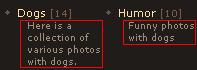 |
| Number of columns with entries. Select from the list. This is how it looks: One column (1) Two columns (2) etc. |
1) 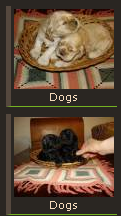 2)
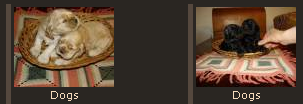 |
| Number of displayed entries. By means of this option you can assign the number of entries to be displayed on module pages: 1) On the main page of the module 2) On the pages of sections 3) On the pages of albums 4) In TOPs 5) In RSS feed 6) In the $NEAR_PHOTOS$ code (the code outputs demo images (see picture 2)). |
1) 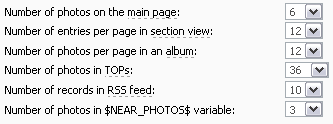 2)
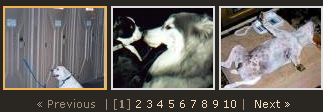 |
| Photo sizes. 1) Dimensions of a demo image – to create a demo image the photo is reduced to the given dimensions. 2) Dimensions of the photo, displayed on a separate page – if a photo is too big this setting allows to modify it to fit your design. 3) Maximum dimensions of a photo. – You can assign maximum dimensions in pixels of uploaded photos. 4) Maximum size of a photo. – You can assign maximum size in Kb of uploaded photos. 5) Save photo original size – if photo size is less than the set value (item 2), the photo will remain as it is. | 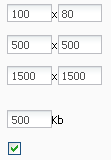 |
| Size reduction method for the creation of a demo image. Scaling – a photo will be reduced. Cropping – a photo will be reduced to fit the set values, some part may be cropped. |  |
| Max. length of a photo description. You can specify the length of the text to be displayed on the page with a photo.
If text length will exceed the given values the description will be automatically truncated. | 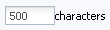 |
| Comments. By means of this setting you can disable/enable comments (1), assign the number of comments per page (2), and the position of new comments (3) – at the top (like last added news) or at the bottom (like forum posts). |  |
| Use "LightBox" feature in categories. With this option enabled photos will be displayed in a new beautiful pop-up window after you click on a demo image. |  |
| Photo rating. After this option has been enabled the users will be able to rate photos. |  |
| Sorting of photos. By means of this option you can specify the sorting mode of photos on module pages. | 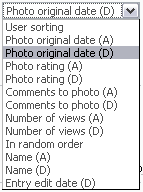 |
| Fields of a new photo form. Here you can activate/deactivate (1) the fields for the adding of photos and make them optional/required (2). | 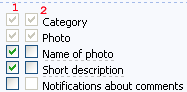 |
| Display menu of photos sorting. 1) After this option have been enabled you’ll see sorting menu in all albums (2). 2) You can choose the sorting items you need. |
1)  2)
 |
| Albums where users can add photos. 1) You can select albums where users will be allowed to add photos. Press Ctrl and select the albums you need. 2) If you want to make all albums available put the corresponding checkmark. |  |
| Notifications of the administrator. Here you can set whether to inform you by e-mail about new added photos and comments. |  |
| Module fine settings. 1) Enable ability to choose date of entry adding – if you need a photo to be added after some period of time this setting will permit you to do this. 2) Enable capability to search entries of a particular user – if there are a lot of photos and you need to find the photos of a particular users you can enable and use this option for better search | 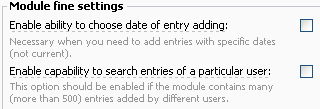 |
I'm not active on the forum anymore. Please contact other forum staff.